Goldbug Software
Save My Receipt
|
Save My Receipt for iOS |

Save My Receipt for iOS | Free (In App Purchase) iOS 26 and later |
What's New
Jul 1, 2026 Save My Receipt for iOS 1.0.1 is released.
- Moved to subscription app. At the free version, you can save the scanned receipt four times in a day.
Apr 10, 2026 Save My Receipt for iOS is released.
- Save My Receipt is an app that lets you take a picture of receipt with iPhone camera, and convert it into small image, then save it.
Save My Receipt for iOS
Save My Receipt is an app that lets you take a picture of receipt with iPhone camera, and convert it into small image, then save it. When taking a photo, trapezoid is converted into rectangle using image recognition, making it easy to take photos. In addition, image are converted to black and white binary image, which reduces its size and makes it easier on your iPhone's storage. And the file name is automatically created by reading the receipt date, so you can save it with just one tap. In other words, you can take a photo of your receipt and save it with just three taps: take a photo, clip, and save. This is the perfect app for those who want to organize and save their receipts.
When you receive your receipt after shopping, you can take a photo of it and save it as an image.
Subscription
Note that the free version is limited to save count up to 4 times per day, but when you purchase the subscription the limit is unlocked.
- Monthly Subscription $0.49/month
- Yearly Subscription $2.99/year
(prices may vary by location)
Subscriptions are auto-renew but you can cancel the automatic renewal at anytime up to 24 hours before the end of the period.
Terms
This app is licensed to you under the Licensed Application End User License Agreement (Standard EULA) provided by Apple.
Privacy Policy
This application does not communicate with external sites. The information on the photographed receipt is used only within the application and is not sent to external sites. Privacy Policy
Functions
- Taking a picture and save the receipt
- Automatic filename creation for receipt images
- Continuous saving in the selected folder
- Minimize the data size of saved image
Taking a picture and save the receipt
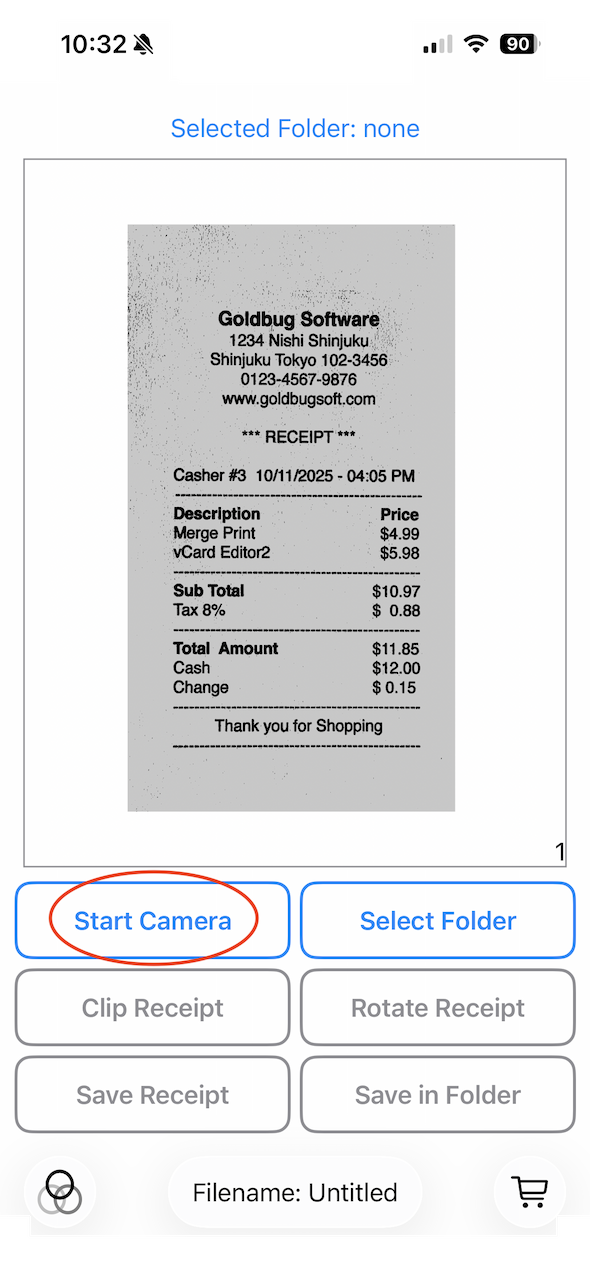
Tap the "Start Camera" button to begin recording.
|
|
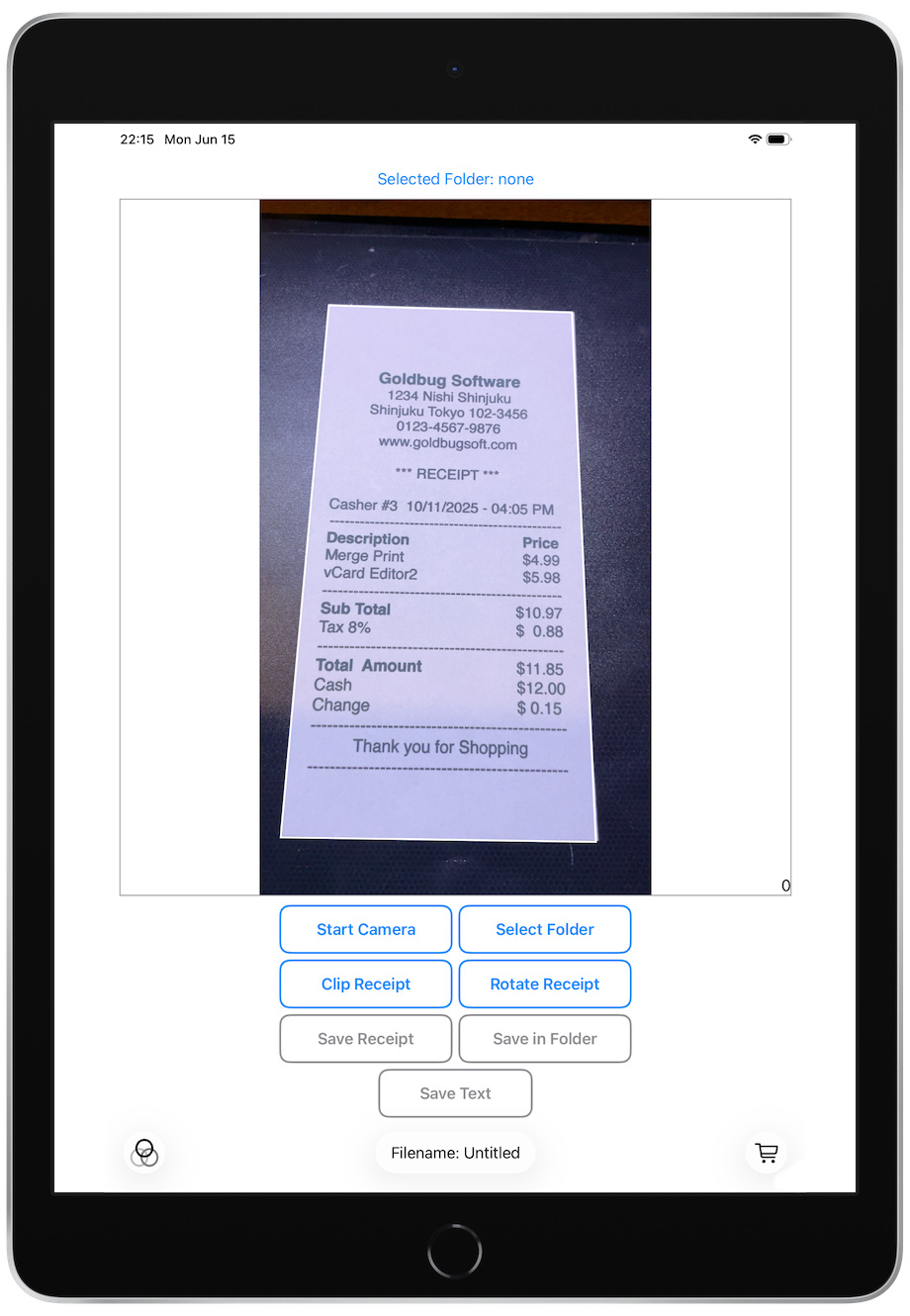
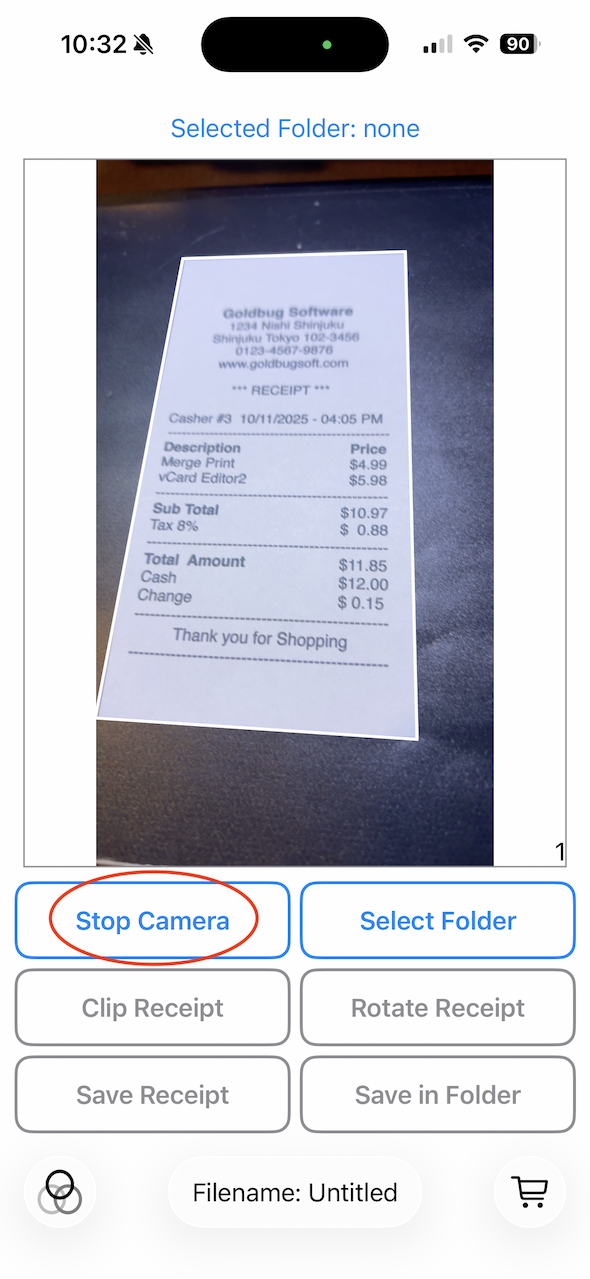
Move the camera or the receipt so that all four corners of the receipt are in the frame. Once the four corners of the receipt are recognized, a white frame will appear on the screen, so tap the "Stop Camera" button to take a photo of the receipt. The recording was successful when the video stops and a receipt with a white border appears on the screen.
The white frame can be slightly slanted or trapezoidal.
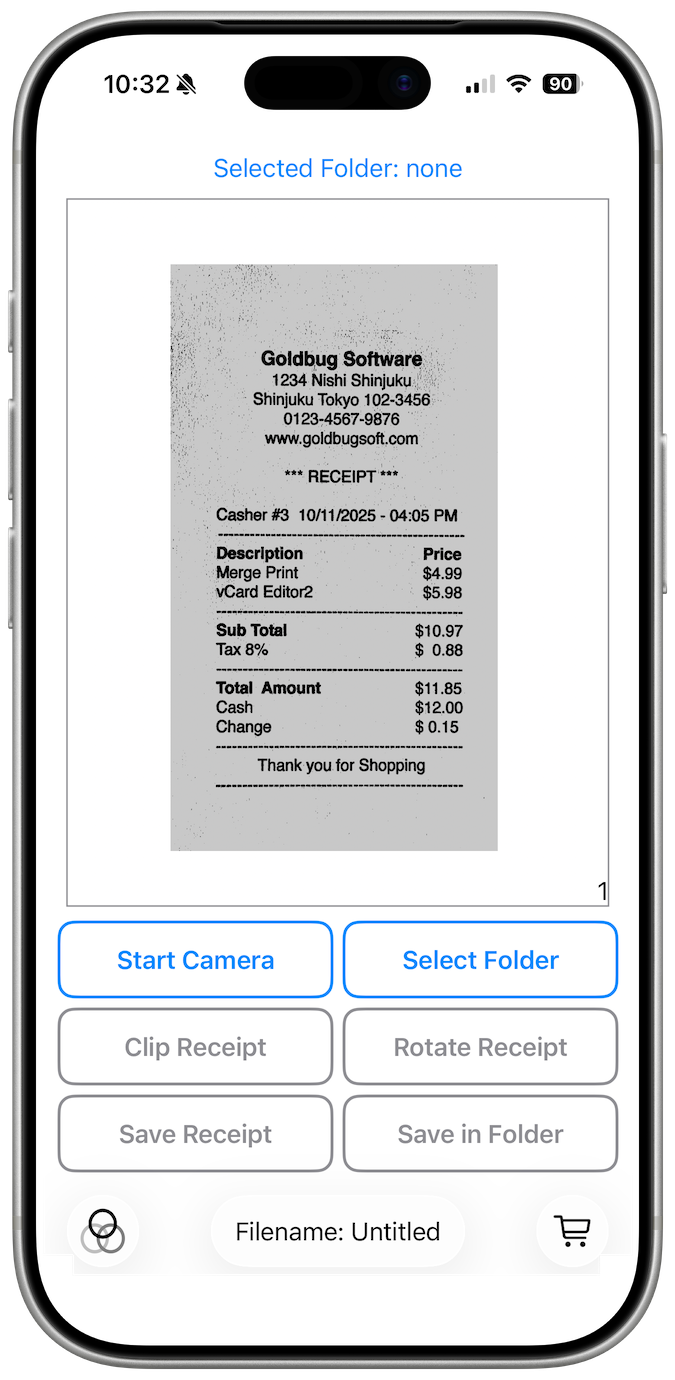
Tap the "Clip Receipt" button. The app will correct the white frame into a rectangle and crop the image to the size of the frame. Then the image is converted to black and white and binary, and the result is displayed on the screen. Additionally, the date and time is read from the receipt and displayed as the file name at the top of the screen. If the date cannot be read, the file name will not be displayed, but it can still be saved.
When you tap the "Save Receipt" button, the screen will change to allow you to select a save location. Select a folder and tap the Save button to save the receipt. You can then change the file name.
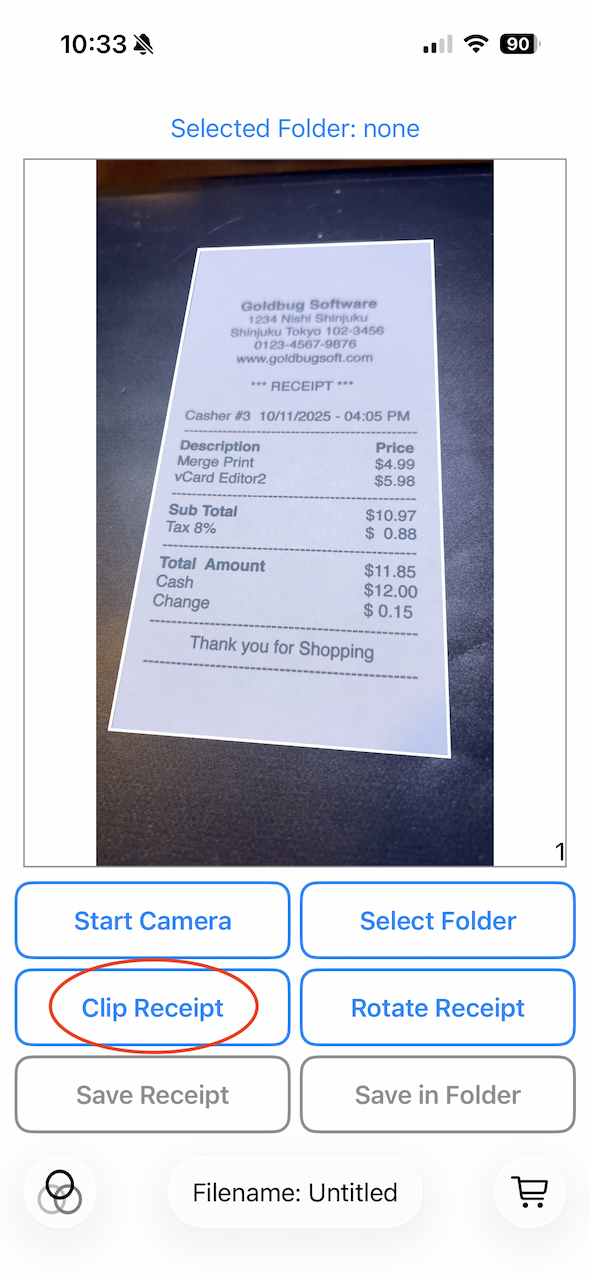
Automatic filename creation for receipt images
This app reads the date and time from the receipt and creates a file name like "20251115_0405.png". The name of the created file is displayed at the bottom center of the screen.
Long file names are displayed in an abbreviated form, but tapping the file name reveals the full text. There is a toggle switch to determine whether the total amount is included in the file name; when this switch is turned on, the total amount—if successfully read from the receipt—is appended to the file name.
If the date cannot be read, the file name will be "Untitled.png". In either case, you can change the name when saving.
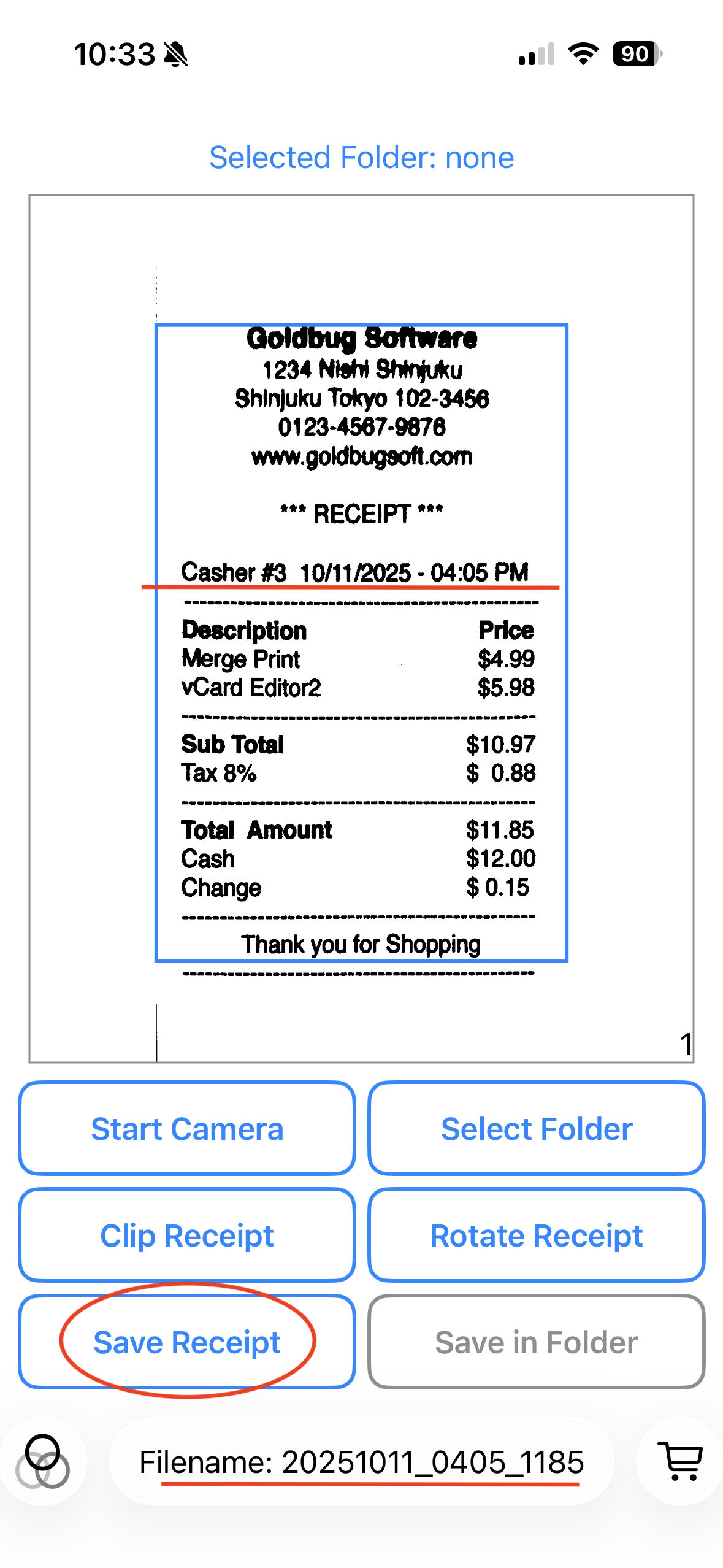
|
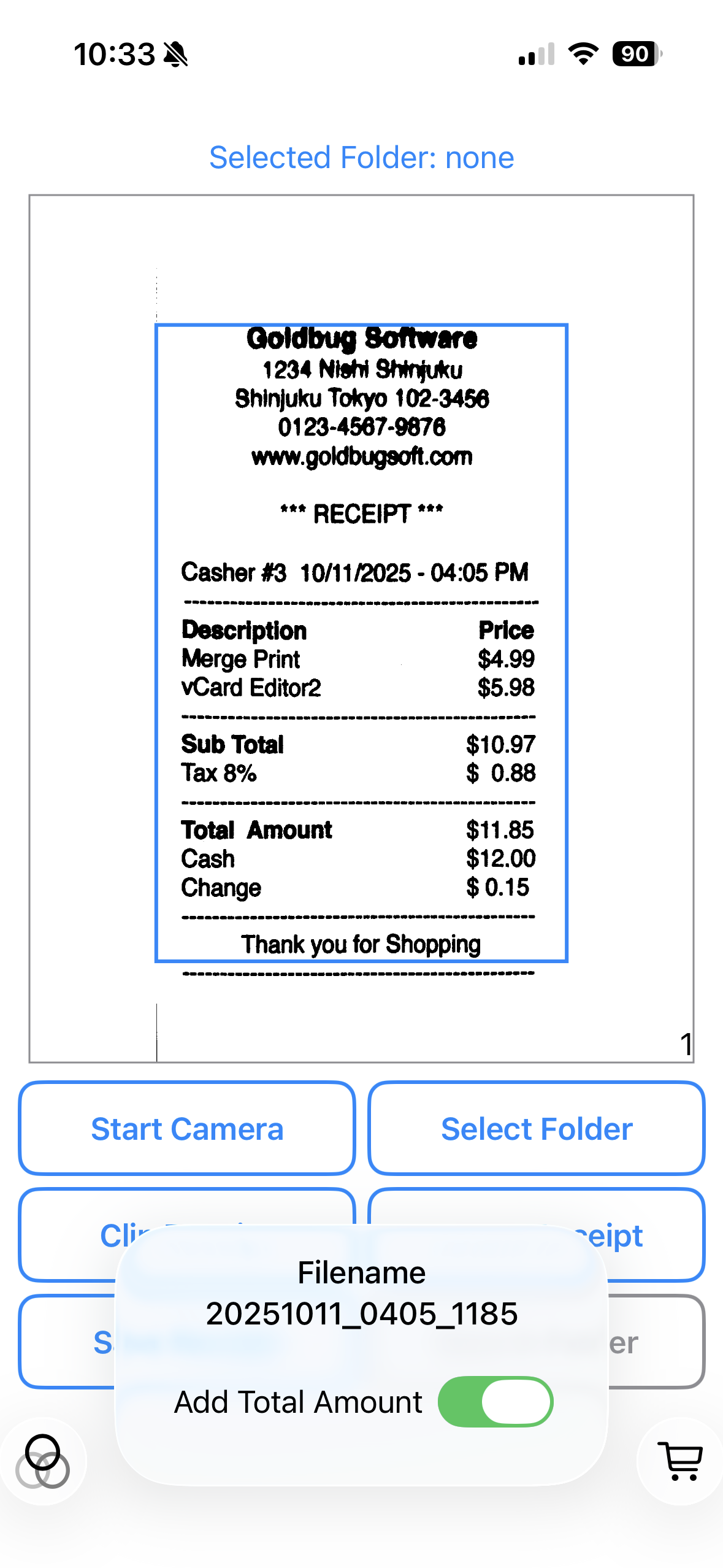
|
Continuous saving in the selected folder
Tap the "Select Folder" button to select the folder where you want to save the receipt. The name of the selected folder will appear at the top of the screen, and you can deselect it, by the context menu which is shown by long press the name.
When a folder is selected, the "Save in Folder" button becomes available. By tapping it, you can skip the folder selection screen and save the receipt. This is useful when taking pictures of receipts repeetdly and saving them.
Note that this button will not be enabled if the date cannot be read.
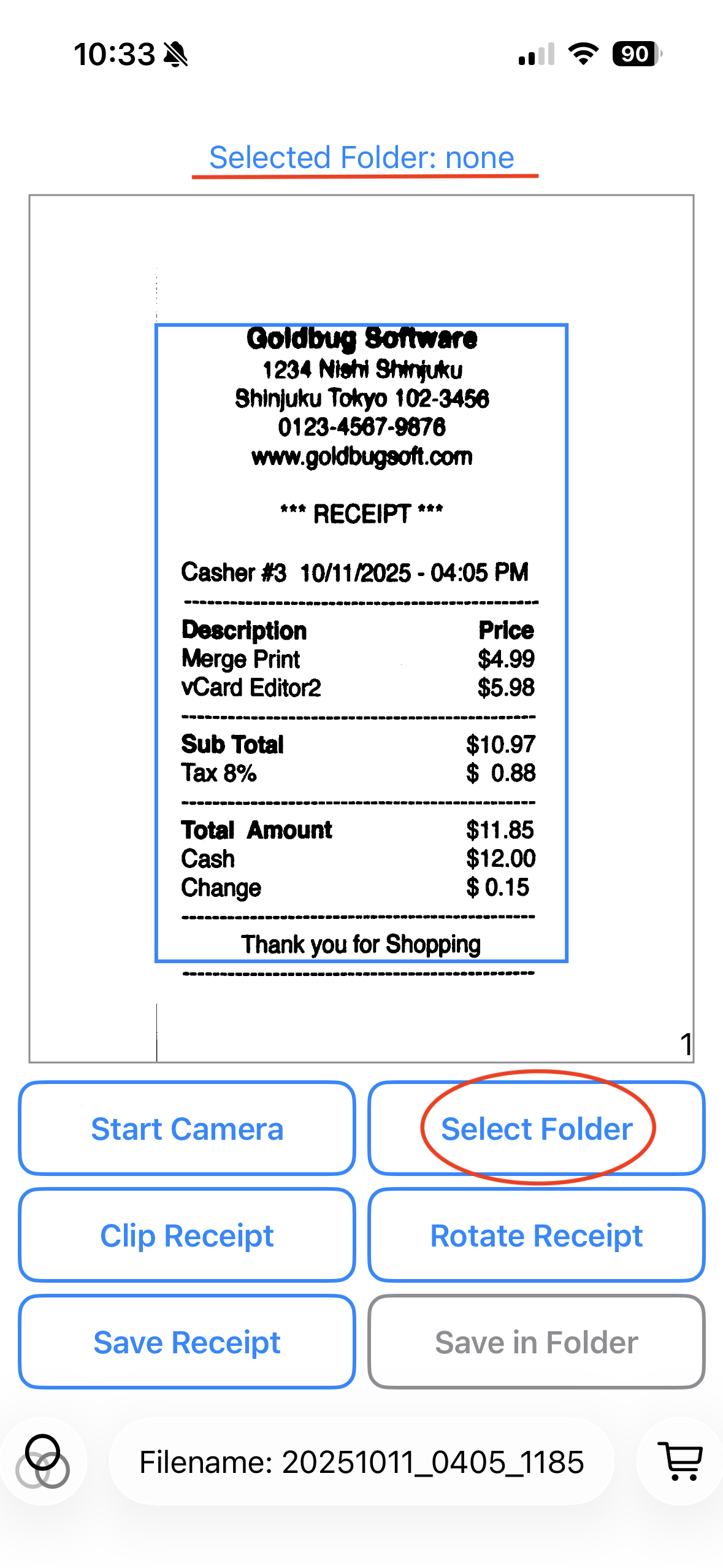
Minimize the data size of saved image
By tapping the button in the lower left corner of the screen, you can select how the image will be converted when saving the captured receipt. The default is to perform "black and white conversion" and "bilevel conversion".
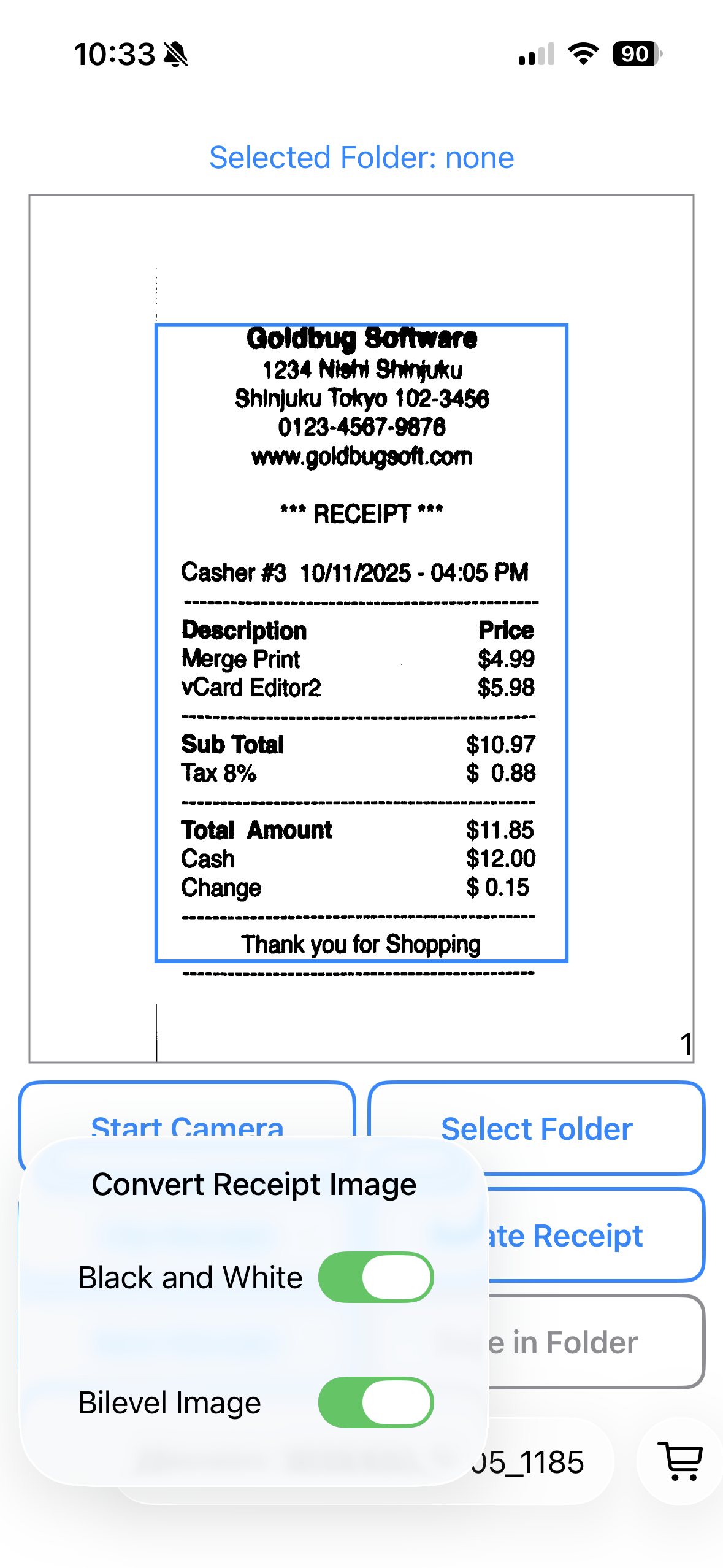
The differences between each are as follows:
|
Original 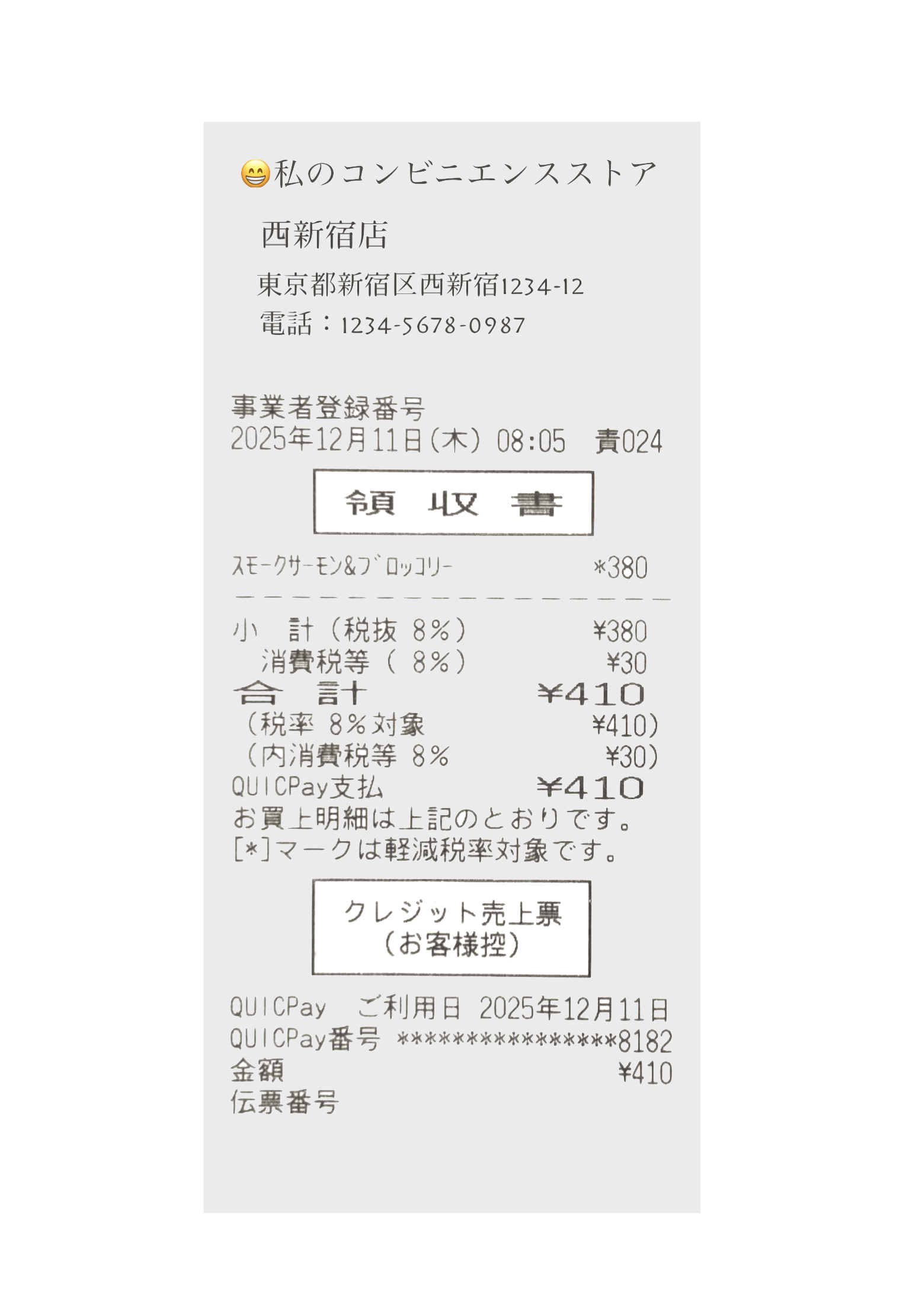
1.4MB |
black and white 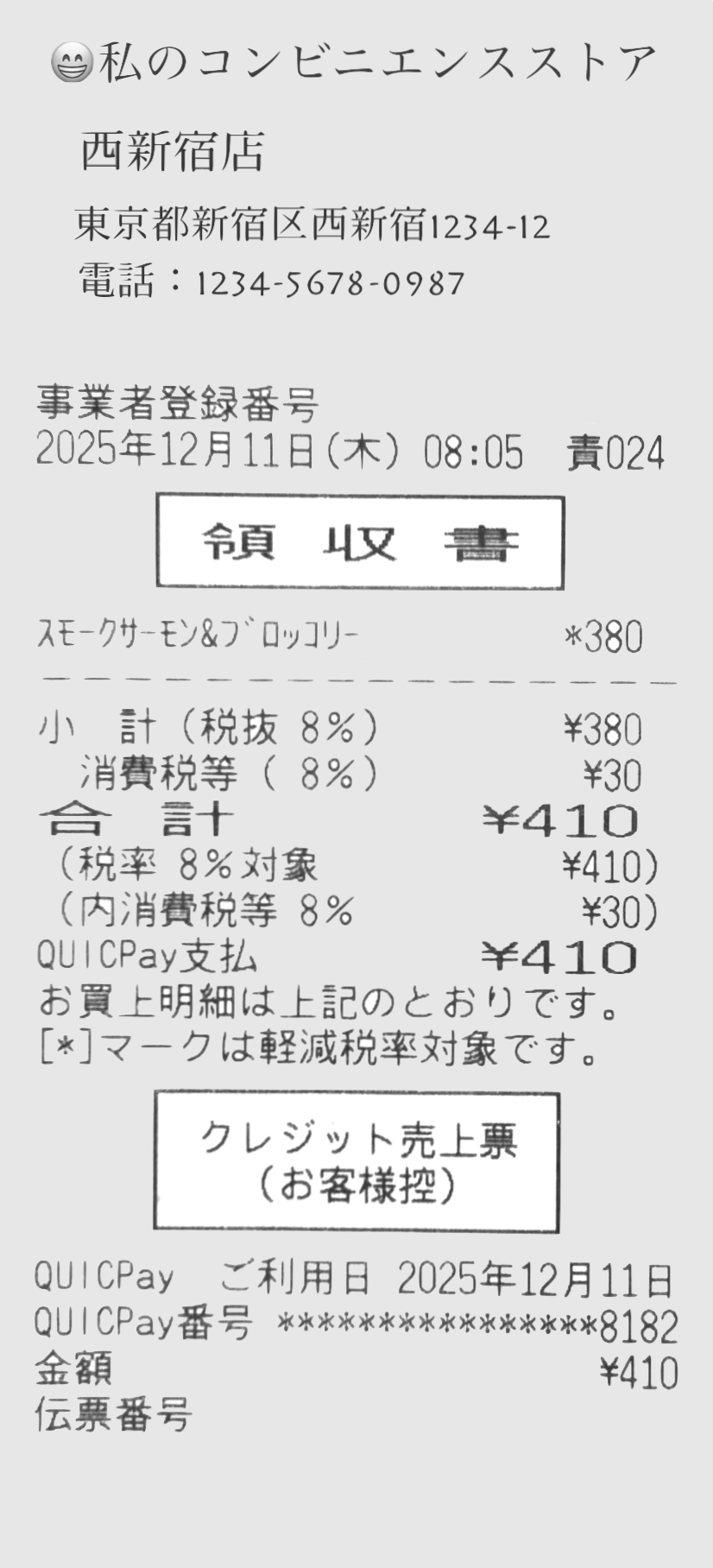
275kB |
bilevel 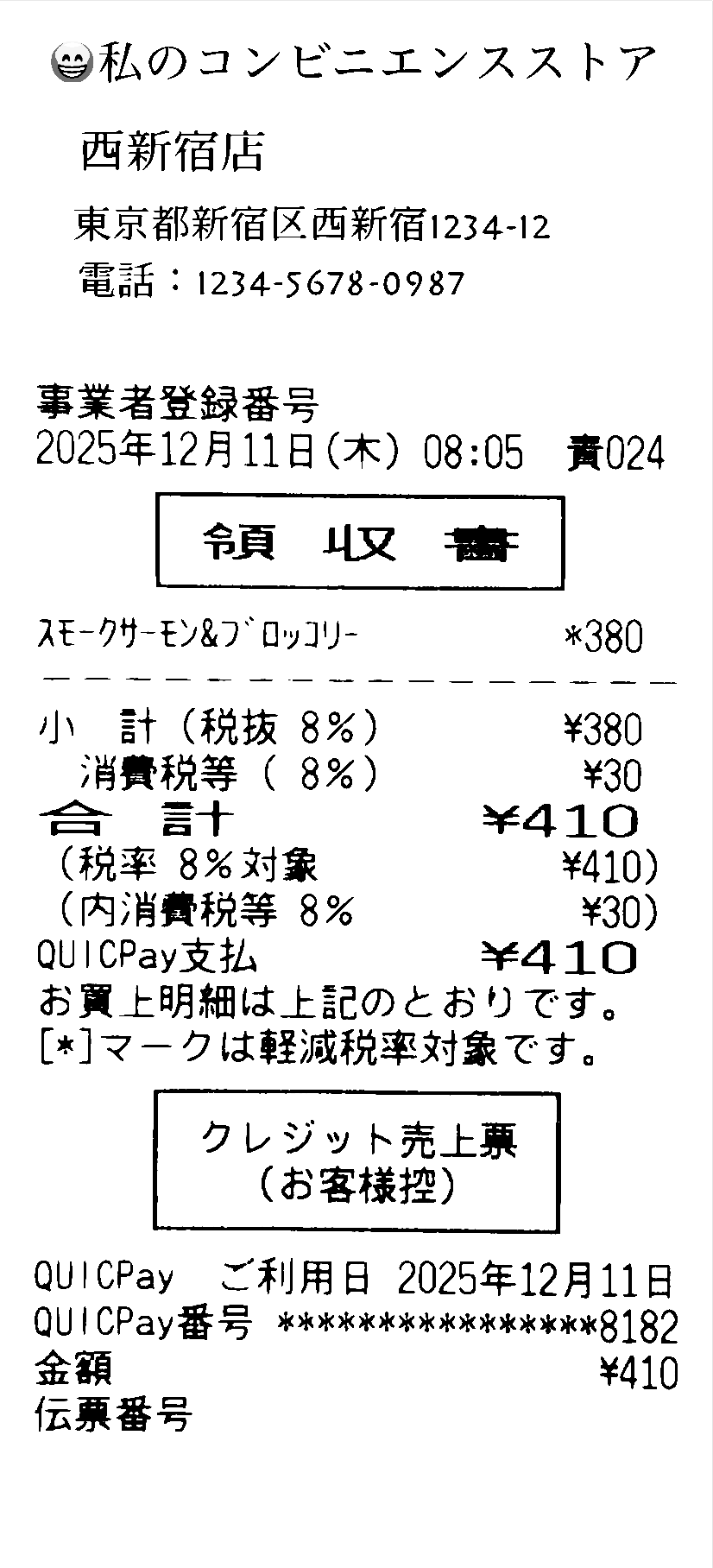
90kB |
"black and white" and "bilevel" 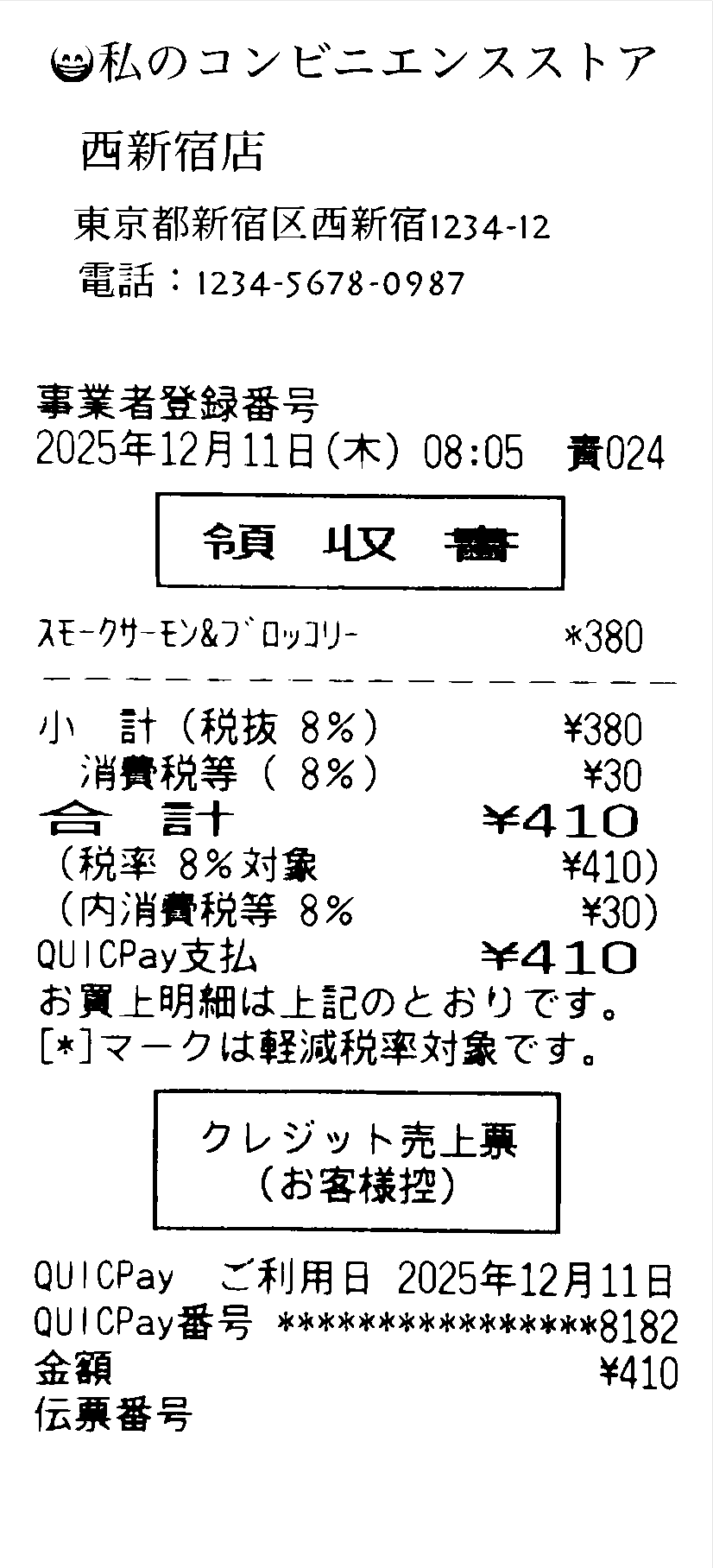
75kB |
Operating system requirements:
iOS 26 and later is necessary for Save My Receipt for iOS